1.8 Medicalholodeck Link
1.8.V1.9-01
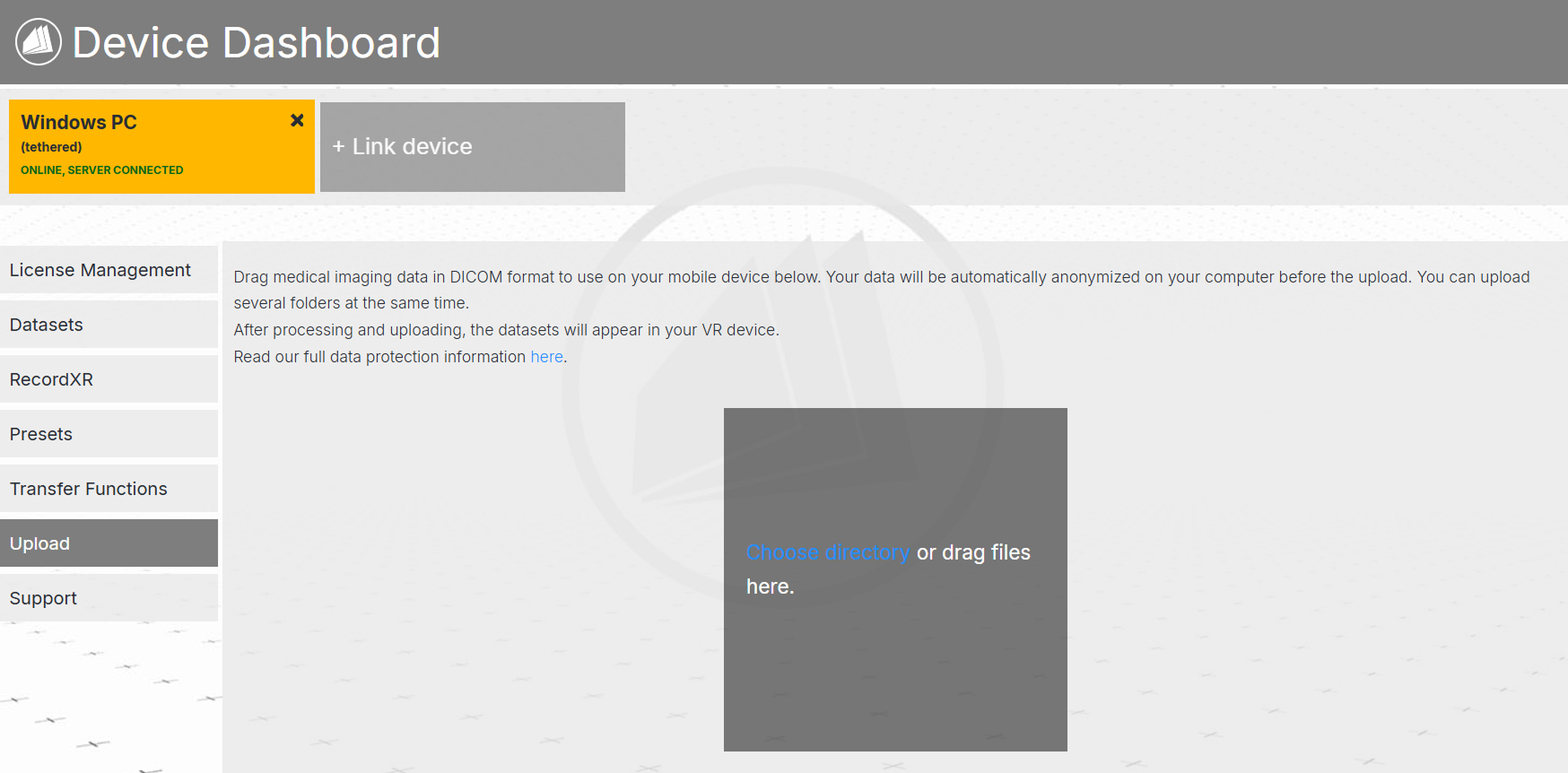
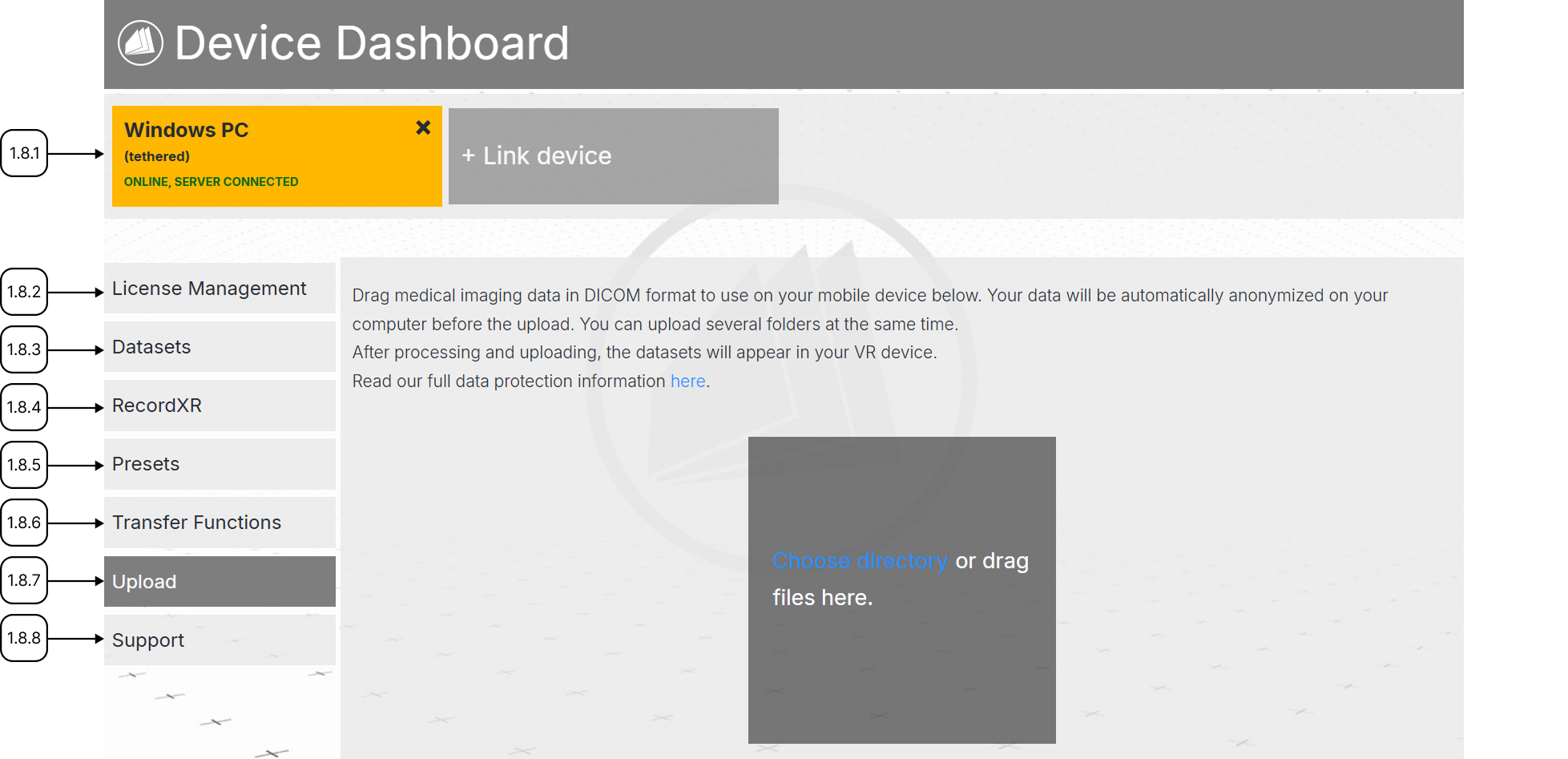
Link’s device dashboard consists of the device bar and 7 sections: license management, datasets, RecordXR, presets, transfer functions, upload and support.
Medicalholodeck Link is a web dashboard for managing VR and PC devices. Use it to activate licenses, organize content, and upload files.
The device bar shows connected devices and their status. The active device is highlighted in yellow. To link a new device, click "Link device" and enter the 6-digit code shown on your device. To switch between devices, click their corresponding buttons.
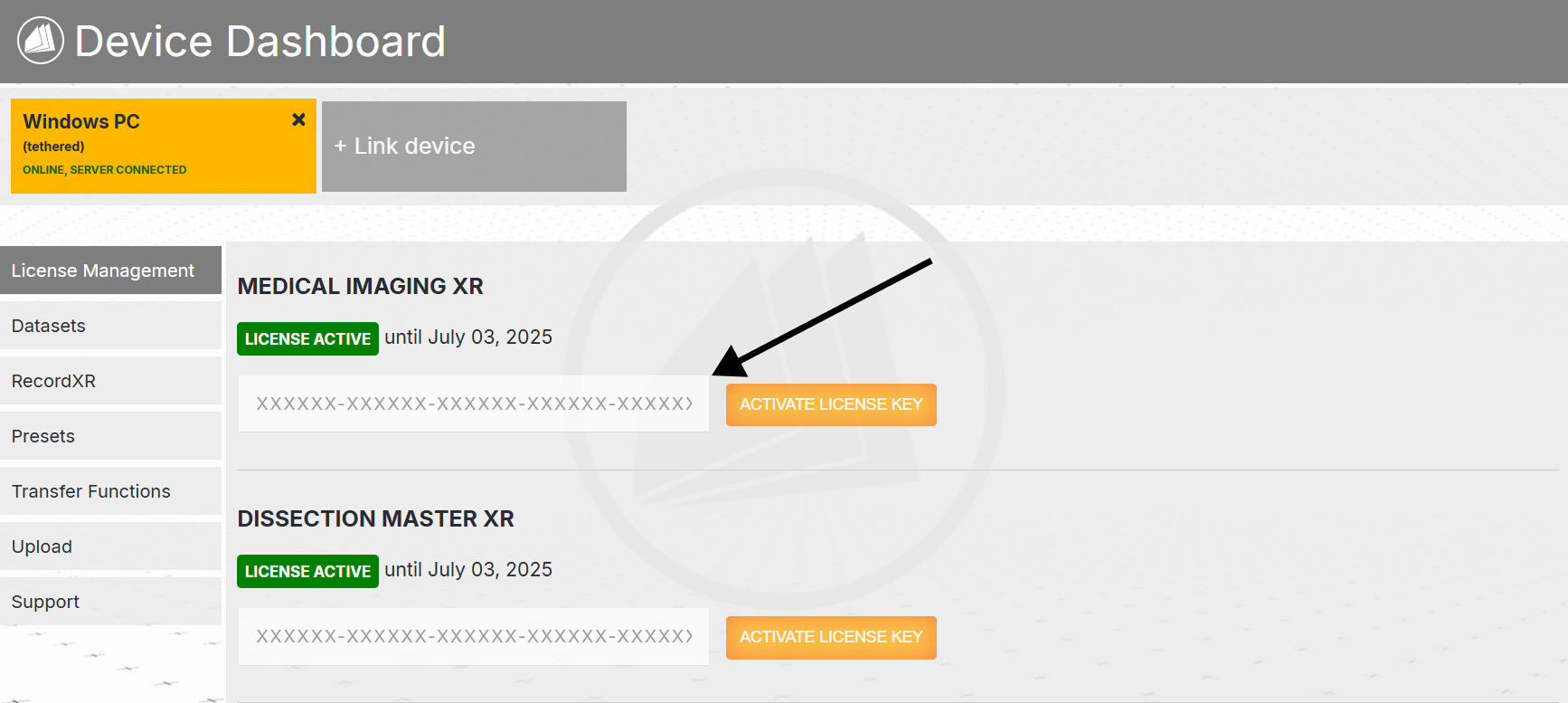
The License Management section allows you to activate licenses and see their expiration dates. To activate a license, paste your license key into the designated field and click "Activate." This works for both VR headsets and PCs.
The Datasets section displays all datasets saved on the connected device. Change the dataset name by editing the "Label" field. Click "Save" to confirm. To remove a dataset, click "Delete." Please note that this action is permanent.
The RecordXR section displays all XR recordings saved on the device. Edit their descriptions or completely remove the files.
You can also rename and delete presets and transfer functions in their respective sections.
To upload files from your computer to the connected device, go to the Upload section and click "Choose directory" or drag files into the upload area. Multiple files can be uploaded at the same time and they are automatically anonymized before transfer. Complete the upload by confirming the import in VR on the connected device.
If you need help, go to the "Support" section to contact technical support or access documentation.
1.8.1
Device bar
1.8.1.V1.9-01
Shows connected devices and their status. The active device is highlighted in yellow. Click another device to switch control.

Link a device
Connect your device using the 6-digit code, which appears in the cloud tab after you press the import button in the Medical Imaging section.
1.8.2
License management
1.8.2.V1.9-01
Activate licenses by pasting your code you received by email into the field. Click the activate button. Works for both VR headsets and PCs.
1.8.3
Datasets
1.8.3.V1.9-01
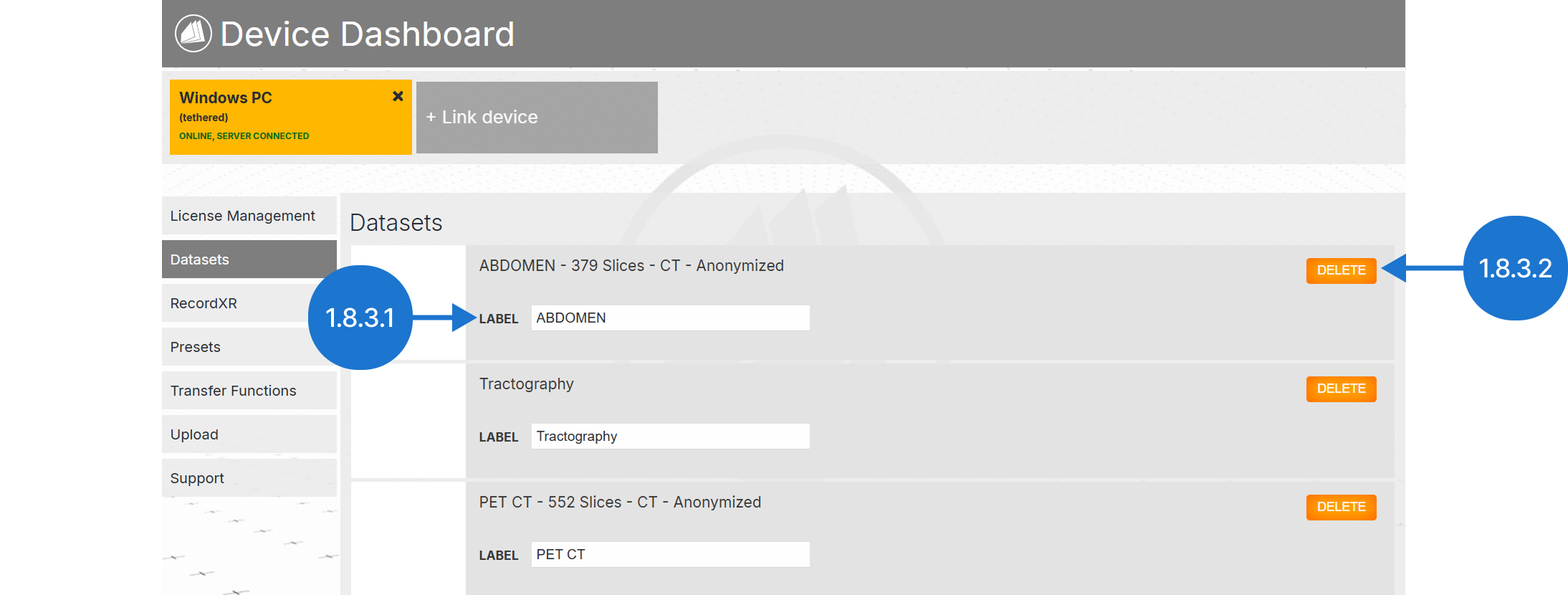
Displays datasets saved on the connected device.
1.8.3.1
Label
In this text field you can change the name of the dataset.
1.8.3.2
Delete
Delete the dataset from the connected device here.
1.8.4
RecordXR
1.8.4.V1.9-01
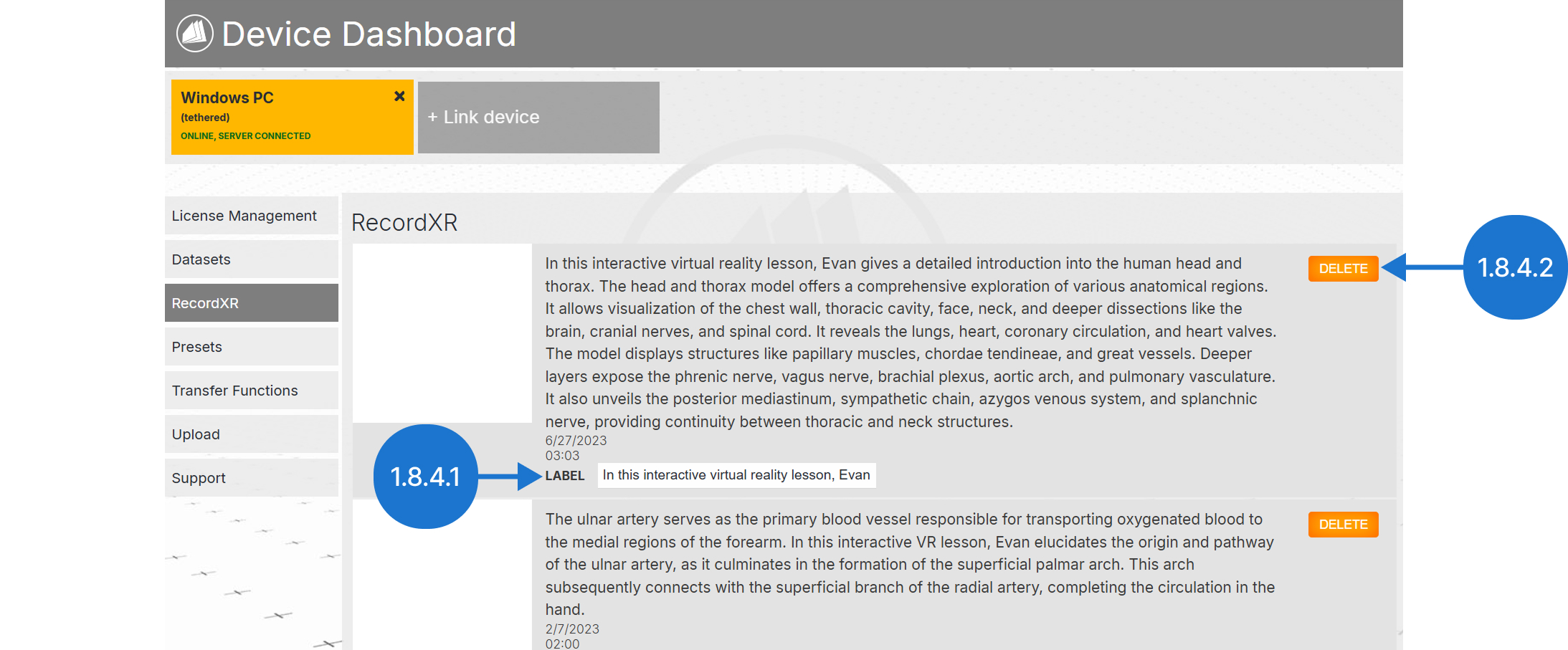
Displays recordings saved on the connected device.
1.8.4.1
Label
Change the description of the recording here.
1.8.4.2
Delete
Delete the recording on the connected device here.
1.8.5
Presets
1.8.5.V1.9-01
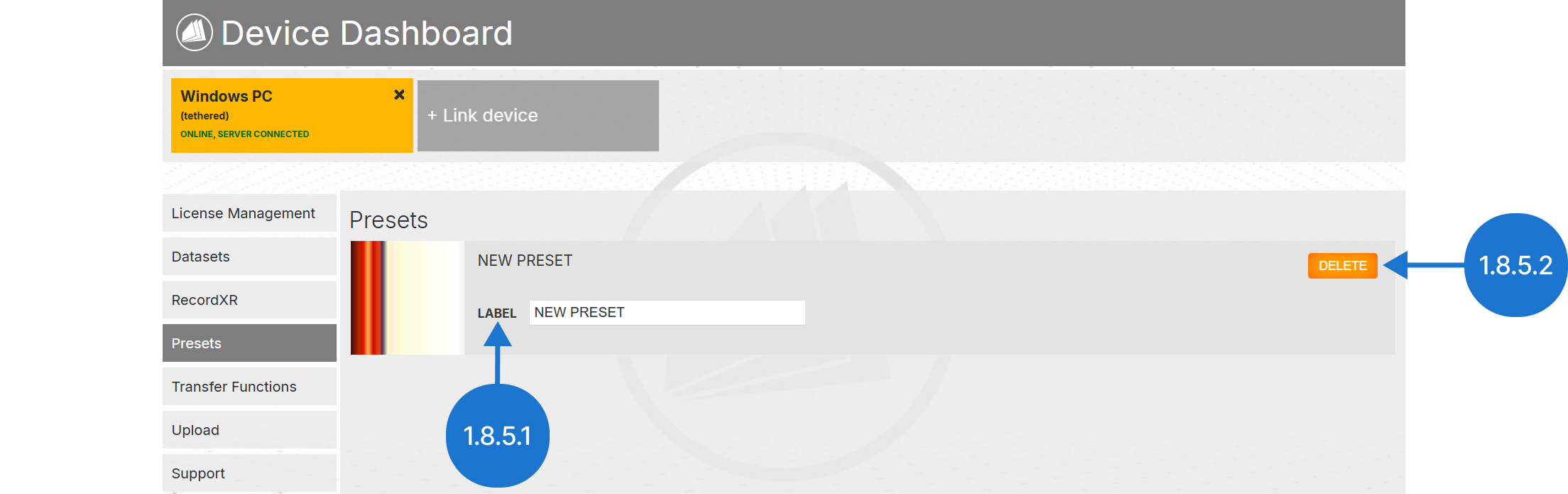
Displays presets saved on the connected device.
1.8.5.1
Label
Change the name of the preset here.
1.8.5.2
Delete
Delete the preset on the connected device here.
1.8.6
Transfer functions
1.8.6.V1.9-01
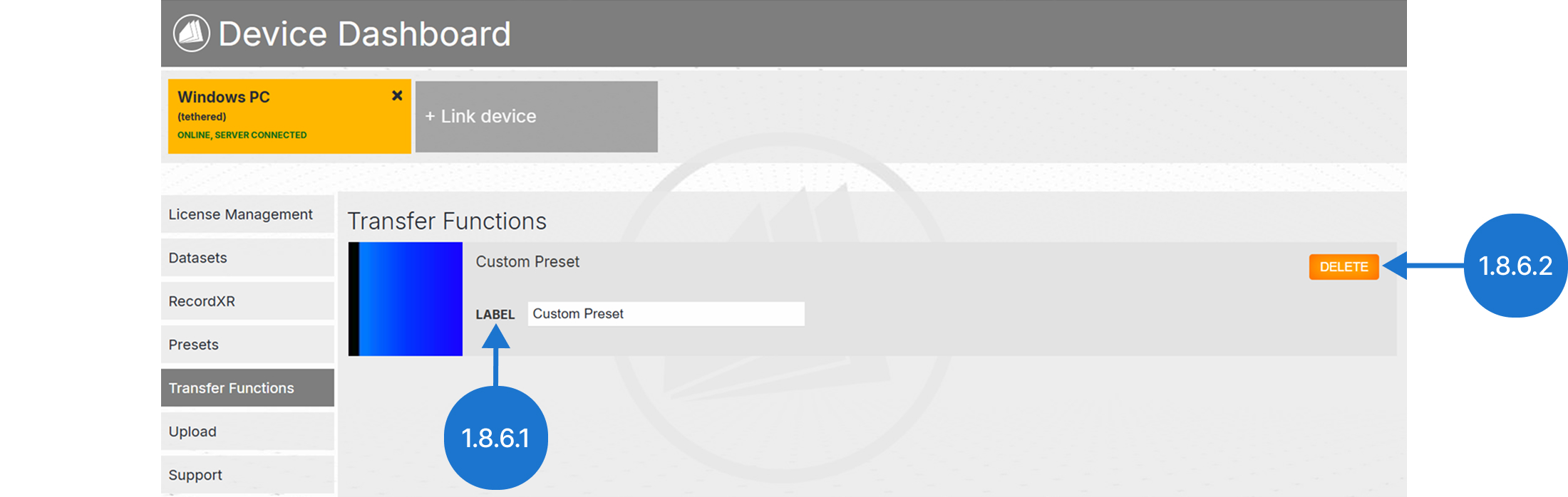
Displays transfer functions saved on the connected device.
1.8.6.1
Label
Change the name of the transfer function here.
1.8.6.2
Delete
Delete the transfer functions on the connected device here.
1.8.7
Upload
1.8.7.V1.9-01
Upload files to the connected device by clicking choose directory or dragging them into the upload area. Multiple files are supported and auto-anonymized before transfer. Confirm the import in VR on the connected device to complete the upload.