
1.8 Data manipulation
1.8.V1.9-01
Load a dataset into the workspace to activate cutting and scaling controls.
Learn how to manipulate datasets in Spatial OS.
Start by loading a dataset into the workspace. If several models are loaded, click a model’s icon on the left to make it active. Only the active model can be manipulated . The selected icon is highlighted in yellow, and the model is centered in your view.
Left-click and drag to rotate it.
Right-click and drag to move it along the horizontal and vertical axes.
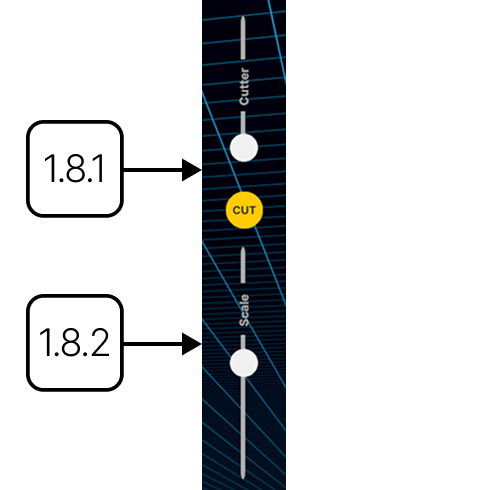
To create a cut, first rotate the model to the required orientation. Move the Cut slider to adjust the depth of the cutting plane. Click Cut to apply the plane to the active model.
To resize the model using the Scale control, drag the control up or down. Release it when the model reaches the required size.
You can also manipulate the model directly with the mouse and keyboard.
Hold Shift and scroll to resize the model.
Scroll without holding Shift to zoom in or out and change your distance from it.
1.8.1
Cut
1.8.1.V1.9-01
Slices the active dataset along the current viewing direction. Adjust the cut depth using the slider and rotate the model to change orientation. Press Cut to apply the temporary plane.

1.8.2
Scale
1.8.2.V1.9-01
Resizes the active dataset by dragging the scale control up or down. Release to apply the change. The control functions like a joystick and returns automatically to its default position.

1.8.3
Mouse and keyboard shortcuts
1.8.3.V1.9-01
1.8.3.1
Rotate
Left-click and drag to rotate the model.

1.8.3.2
Move
Right-click and drag to move the model along the X and Y axes.

1.8.3.3
Scale
Hold Shift and scroll to resize the model.

1.8.3.4
Change the distance
Scroll to zoom in or out and change your distance from the model.
